 StoreEdit AI
How to undo a bulk edit in WooCommerce
Changed prices, stock or categories on many products and got it wrong? Three ways to get the old values back, and how to make the next edit reversible.
WooCommerce’s own page on bulk editing describes no undo. If you have just applied a wrong change, you have three ways back: restore a backup, import an earlier CSV export, or reverse the arithmetic. Which one is right depends on what has changed in your shop since the mistake.
What the built-in bulk edit does
You go to Products > All Products, tick the products, choose Edit from the Bulk Actions menu and click Apply. You fill in the fields and click Update. According to the same page, the changes are applied to all the selected products when you press that button. The page says nothing about a way to take them back.
First, stop editing
Every new edit, and every new order that reduces stock, makes the old values harder to work out. Before you do anything else, write down what you changed: which products, which field, and the value you entered. You will need it for all three routes below.
Way 1: restore a backup
WordPress’s backup guide says a complete backup has two parts, the files and the database, and that the database holds your posts and content. Your product prices and stock live in the database, so a database backup taken before the mistake contains the old values.
The catch is that a backup is a photograph of one moment. Anything saved after it was taken is not in it, including orders. If you restore it onto your live shop, you lose those too. A safer way is to restore it onto a copy of the shop, export the old prices from the copy, and import only the price columns into the live shop (see way 2).
Way 2: import an earlier CSV export
If you exported your products before the edit, you can put the old numbers back. The product CSV importer and exporter works like this:
- Go to Products > All Products and select Import.
- Choose your old file.
- Tick Update existing products, then select Continue.
- On the Column mapping screen, choose Do not import for every column you do not want to touch.
- Select Run the importer and stay on the page until it finishes.
WooCommerce matches the rows by ID or SKU. Only put back the columns you broke. If you re-import the Stock column from an old file, you overwrite the stock changes caused by orders since then. Test with two or three products first. For the full routine, see updating WooCommerce products with a CSV.
Way 3: reverse the arithmetic
This works only when you know exactly what you did, and nothing else has touched the same field. The trap is that a percentage rise is not undone by the same percentage cut. A product at 100 raised by 20% becomes 120. Cutting 20% from 120 gives 96, not 100.
To undo a rise of 20%, divide by 1.2, which means a cut of about 16.67%. You cannot enter an endless decimal, so results can be a cent or two out. Check a few products by hand afterwards. Stock is simpler: if you increased it by 10, decrease it by 10. But only if no order or other edit has changed it in between.
Make the next edit reversible
- Export first. On the product list you can select products and use Export X selected, which gives you a file of the old values.
- Filter the list, then try the change on two or three products before you do all of them.
- Keep a note of what you asked for, in words.
Tools that keep a history
Several plugins record changes so you can go back. Read the limits before you rely on them.
- Product Editor for WooCommerce: its listing says the free version edits up to 20 products at a time and keeps the last 3 operations for undo. The premium version keeps 50 and an activity log.
- iThemeland’s rollback: its own documentation warns that rolling back does not help if the products were also changed elsewhere.
- Remukan Bulk Edit: its listing describes a snapshot before each bulk edit and a one-click revert.
- Among assistant connectors, a test of five servers by InstaWP found that Royal MCP returned a 72-hour undo token for its writes.
The StoreEdit AI way
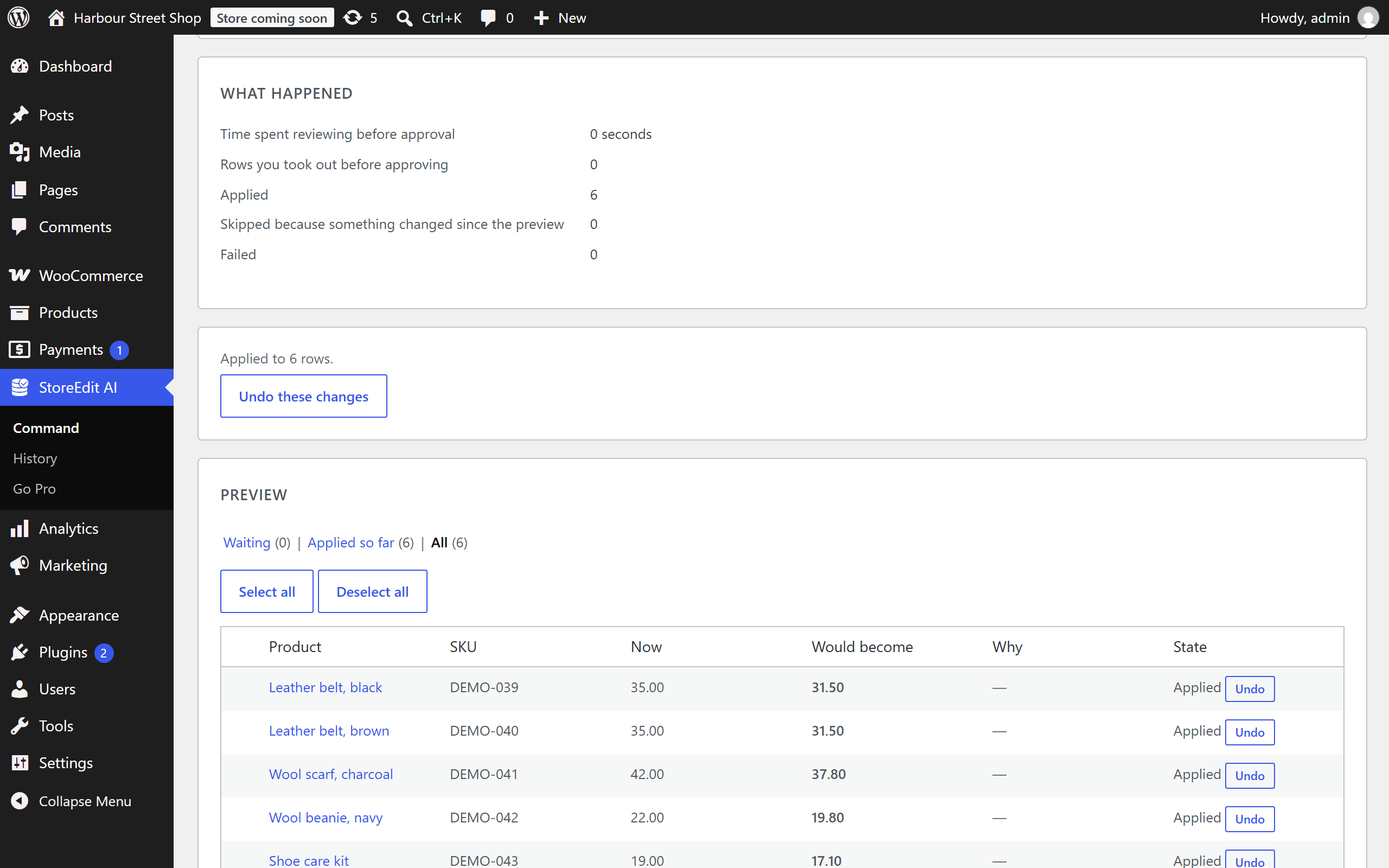
With StoreEdit AI you ask your assistant for a change, see every row before anything is written, and press Apply selected. Afterwards, Undo these changes puts the whole request back, and each row has its own Undo. It restores exactly the value that was there. A product someone changed in the meantime is left alone and reported. The History screen lists every request. On our test shop, a request with 12,596 changes was undone in 20 minutes with every value as it was.
The limits, plainly
| Way | What it needs | Where it falls short |
|---|---|---|
| Backup | A backup from before the mistake | Loses everything saved since, including orders, if restored on the live shop |
| Old CSV | An export made before the edit | Overwrites newer values in any column you re-import |
| Arithmetic | You know exactly what you did | Rounding, and any other edit in between |
| History plugins | Installed before the mistake | Limited history, and edits made elsewhere |
| StoreEdit AI | The change was made through it | It cannot undo an edit made in WooCommerce’s own bulk edit |
Questions
Does WooCommerce have an undo button for bulk edit?
WooCommerce’s documentation for bulk editing describes none. Check the bulk edit panel in your own version, but do not count on finding one.
Can I undo a price increase by cutting the same percentage?
No. Raise by 20% and then cut 20%, and you end up 4% below where you started. Divide by 1.2 instead.
Will restoring a backup delete my orders?
Orders placed after the backup was taken are not in it, so a full restore on the live shop leaves them out. Restore onto a copy and take only the values you need.
What should I do before the next bulk edit?
Export the products you are about to change, and try the change on a few of them. If the change is a price rise, our guide to raising prices by a percentage covers the awkward cases.
Do it by asking, and see it first
StoreEdit AI lets the assistant you already use prepare a change to your products, and nothing is written until you approve it in WordPress. After it is applied you can undo a whole request or a single row, and the old value comes back exactly.