 StoreEdit AI
WooCommerce bulk price update: raise prices by a percentage
Raise WooCommerce prices by a percentage with bulk edit or a CSV, leave sale items alone, handle variable products, and check the new prices.
To raise WooCommerce prices by a percentage, select the products in Products > All Products, choose Bulk Actions > Edit, set Price to “Increase existing price by (fixed amount or %)”, enter the percentage and click Update. That works well for simple products. It gets awkward when some products are on sale, some are variable, or you want to see each new price first.
Decide first: regular price, sale price or both
A product on sale has two prices: the regular price, and a sale price that shoppers pay. A supplier increase usually means the regular price goes up. Sale prices are usually set again when the next sale is planned. Decide which you mean before you touch anything, because the bulk edit has a separate field for each.
Way 1: the built-in bulk edit
This is from WooCommerce’s page on bulk editing products.
- Go to Products > All Products.
- Narrow the list with the dropdowns above it. The filters named on that page are category, product type and stock status. Click Filter.
- Tick the products. Choose Edit from Bulk Actions and click Apply.
- Under Price, choose “Increase existing price by (fixed amount or %)” and enter the percentage. The option’s name says “fixed amount or %”, so check how your version marks a percentage by trying one product first.
- Click Update.
The Sale field has its own options: change to, increase or decrease the existing sale price, or set it to the regular price decreased by an amount or percentage.
The same page says bulk edit works best with simple products and cannot handle the complexities of variable products. For those, open the product, go to Product data > Variations and use the Bulk actions dropdown. The variable products guide lists “Increase regular prices (fixed amount or percentage)” there. That is one product at a time.
The bulk edit page does not say how the new price is rounded. A 5% rise on 19.99 is 20.9895 on paper. Try one product and look at what appears.
Way 2: a CSV file
The product CSV importer and exporter lets you do the sums in a spreadsheet.
- On Products > All Products, select Export, pick the columns, and select Generate CSV.
- In the spreadsheet, change the
Regular pricecolumn. KeepIDorSKUon every row. - Select Import, choose the file, tick Update existing products, and select Continue.
- On the Column mapping screen, check the dropdowns. Choose Do not import for columns that should stay as they are.
- Select Run the importer and wait.
The importer matches rows by ID or SKU. Without the update tick, rows whose ID or SKU already exist are skipped. Variations are separate rows in the file, with the type variation and a Parent value, so make sure your formula reaches them. The full routine is in updating products with a CSV.
The “except sale items” problem
The filters named in WooCommerce’s documentation do not include “on sale”. In the built-in bulk edit, you have to untick those products yourself. Check the Price column in your version: products on sale usually show their old price crossed out. In a CSV the job is easier. Sort by the Sale price column, and delete the rows that have a value in it, or apply the formula only to the rows where it is empty.
One more detail: a product can have a sale scheduled for later. Its sale price is filled in, but the sale has not begun. Look at the Date sale price starts and Date sale price ends columns too.
Check before you save
The built-in bulk edit shows no preview of the new prices. Do the sums on one product by hand. In a spreadsheet, keep the old price in its own column so you can compare. After the change, sort the product list by price and look at the top and bottom. If it went wrong, here is how to undo a bulk edit.
The StoreEdit AI way
You tell your assistant: “Raise the regular price of all shoes by 5%, except the ones on sale.” StoreEdit AI can filter by category, tag, product type, status, and on sale or not on sale. The assistant reads the catalogue and prepares the change. In WordPress you see your request word for word, how many products were looked at and how many would change, and each row with the product, SKU, price now, price it would become, and a tick box.
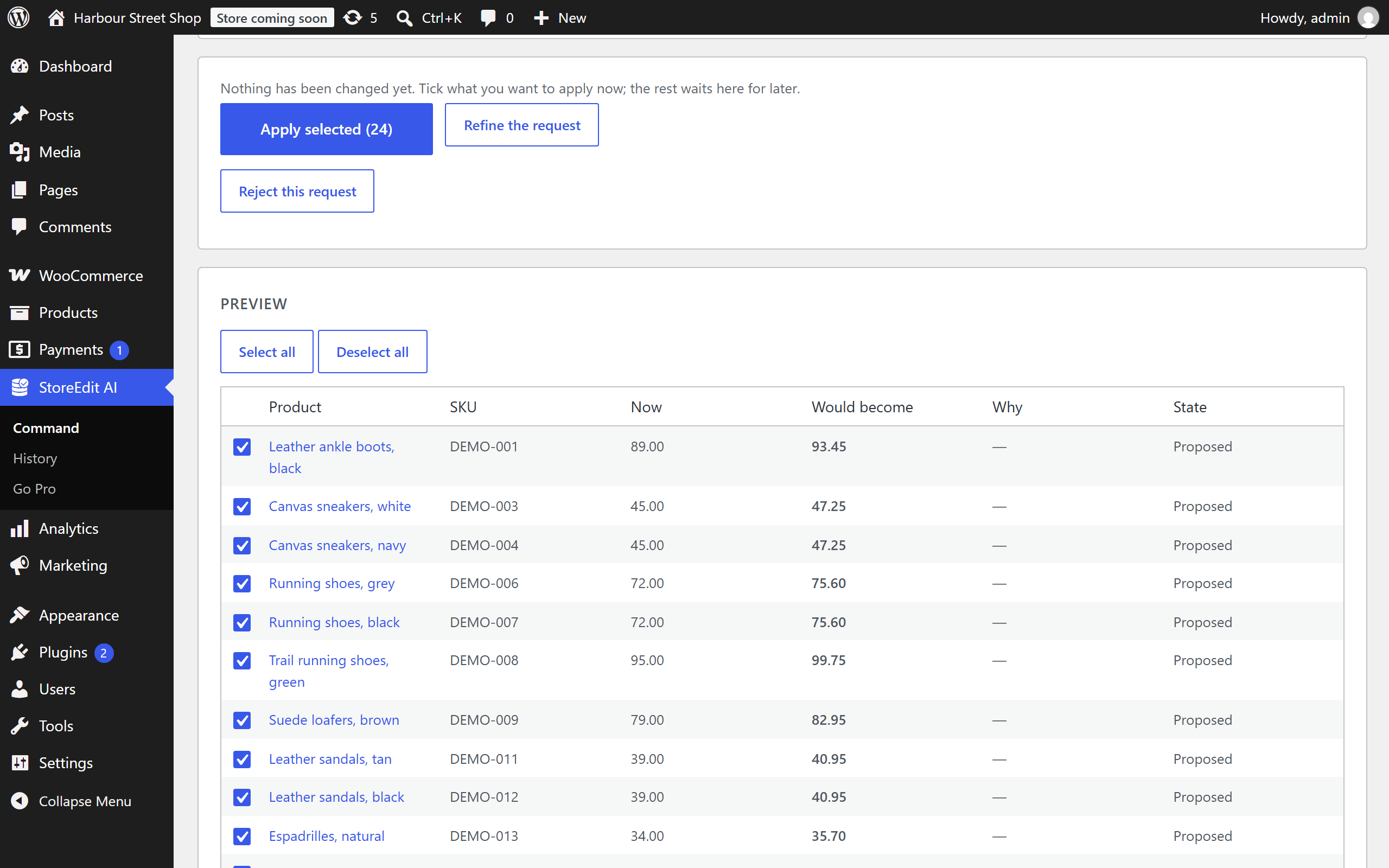
You untick rows you do not want, then press Apply selected. Unticked rows wait and can be applied later. Each row is checked again as it is written; a product that changed since the preview is skipped and listed. On a variable product, the change is made on the variations customers buy. Undo restores the exact old prices.
The limits, plainly
- Built-in bulk edit: simple products, no filter for sale items, no preview of the new prices, and no undo described.
- CSV: exact and free, but you must match by ID or SKU, handle variation rows, and import carefully. There is no review step between the file and the shop.
- StoreEdit AI: it needs an assistant account (Claude or ChatGPT), a shop on HTTPS, and WordPress 7.0, PHP 8.1 and WooCommerce. It does not run on a schedule.
Questions
How do I increase all WooCommerce prices by 10 percent?
Under Screen Options, raise Number of items per page until all products show. Select them all and use Bulk Actions > Edit with the Price option above. The bulk edit page warns that large page sizes may slow the server, and suggests smaller batches.
Does bulk edit change variable product prices?
WooCommerce says bulk edit works best with simple products and cannot handle the complexities of variable ones. Use the Variations tab’s bulk actions for each variable product, or a CSV with variation rows.
Can I round to .99?
The bulk edit page does not describe rounding. In a spreadsheet, a rounding formula before you import gives you full control.
Does it change sale prices too?
Only if you use the Sale field. The Price option changes the regular price.
Do it by asking, and see it first
With StoreEdit AI you ask your assistant for the price change in plain words, including the exceptions. You see every product with its old and new price, untick what you do not want, then apply. A whole request can be undone.