 StoreEdit AI
Update WooCommerce Products With a CSV: A Safe Checklist
Export, edit and re-import existing WooCommerce products without duplicates or damage: matching, import settings, variations, checks, and when to stop.
To update existing products with a CSV, export them from Products > All Products > Export, change the cells, then import the file from the same screen with Update existing products ticked. WooCommerce matches each row to a product by its ID or SKU. The method is free and it works well. What it lacks is a preview and an undo, so the discipline around it is the whole job. Everything below follows WooCommerce’s own guide (product CSV importer and exporter).
1. Export a fresh file and keep a copy
- Go to Products > All Products and click Export.
- On the Export Products screen, choose the columns (or keep Export all columns), the product types and the categories.
- Click Generate CSV.
To export only some products, select them in the list and click Export X selected. Save the original file somewhere and never edit it. It is your way back, so a fresh export on the day beats one from last month. WooCommerce also advises a full backup and a test on a staging site first.
2. Keep the columns you need
The guide says the file must include the ID or SKU of each product to update. Keep that column and the ones you intend to change. Every column you map is imported, so the fewer the safer. The columns include ID, SKU, Name, Short description, Description, Regular price, Sale price, Date sale price starts, Date sale price ends, Categories and Tags (product CSV schema).
3. Match by ID or SKU
Rows match existing products by ID or SKU. Starting in WooCommerce 11.2, a row with both blank can match on a GTIN, UPC, EAN or ISBN column, but only if you choose that column in the mapping. A supplied ID or SKU wins, and an ID that matches nothing is skipped. Do not change IDs, and do not let a spreadsheet turn SKUs such as 00123 into 123.
4. Import with the right settings
- Go to Products > All Products and click Import.
- Choose your file and select Update existing products. Click Continue.
- On the Column mapping screen, check each automatic match. Choose Do not import for any column to skip.
- Click Run the importer and wait. Do not refresh the page.
The guide warns about three things. A duplicate SKU is skipped if Update existing products is not selected, so a forgotten tick means those rows are skipped. An unmatched ID is skipped, so read the import log. Columns WooCommerce does not recognise are not imported unless they use the meta: prefix or Import as meta.
Also: save as UTF-8, use 1 and 0 for yes and no, and open the file again after saving from a spreadsheet program to see what it did to it. Split very large files into smaller ones, because upload limits come from your server.
5. Variable products and variations
A variation has Type set to variation and a Parent that holds the parent’s SKU or id:123. Give each variation its own unique SKU. In the parent row the attribute columns list all values; in each variation row they hold only that variation’s value. The guide also notes that when a product has three or more attributes, attribute values may be missing from variation names in an export. For a price change on a variable product, update the variation rows, since those are the rows that hold what shoppers pay. Test on one variable product before the rest.
6. Check the result
- Read the import log for skipped rows.
- Compare product count before and after.
- Open five or six products, including a variable one, and compare them with your original export.
- Look at the shop page as a customer would.
If something is wrong, import the original export the same way. That puts back every value in that file, including edits made in the shop since, so do not wait.
7. When a spreadsheet is the wrong tool
A CSV is the right tool when the change comes from a list you already have, such as a supplier sheet. It becomes slow or risky when:
- the change is a rule (“raise shoes by 5%, except those on sale”), not a list, and you must write the maths into every cell;
- you want to see before and after, product by product, before anything is written;
- the catalogue has many variable products;
- you need to undo one row, not the whole file.
Alternatives: the built-in bulk edit for simple fields (see raising prices by a percentage), or a plugin that keeps history. Product Editor for WooCommerce, for example, lists a free version that keeps the last three operations for undo and edits up to 20 products at a time (wordpress.org listing). Another is to ask an assistant.
The StoreEdit AI way
StoreEdit AI connects Claude or ChatGPT to your shop through MCP, the standard way an AI assistant connects to another system. You describe the change instead of building a file: “Raise the regular price of all shoes by 5%, except the ones on sale.” The assistant reads the catalogue and prepares it. In WordPress admin you see the request, how the shop understood it, and every product with the value now, the value it would become and a tick box. You untick rows and press Apply selected. Each row is checked again as it is written, so a product that changed since the preview is skipped. Undo these changes restores the exact earlier values, and a product someone changed in the meantime is left alone and reported. On our test shop, one request with 12,596 changes was written in 28 minutes and undone in 20.
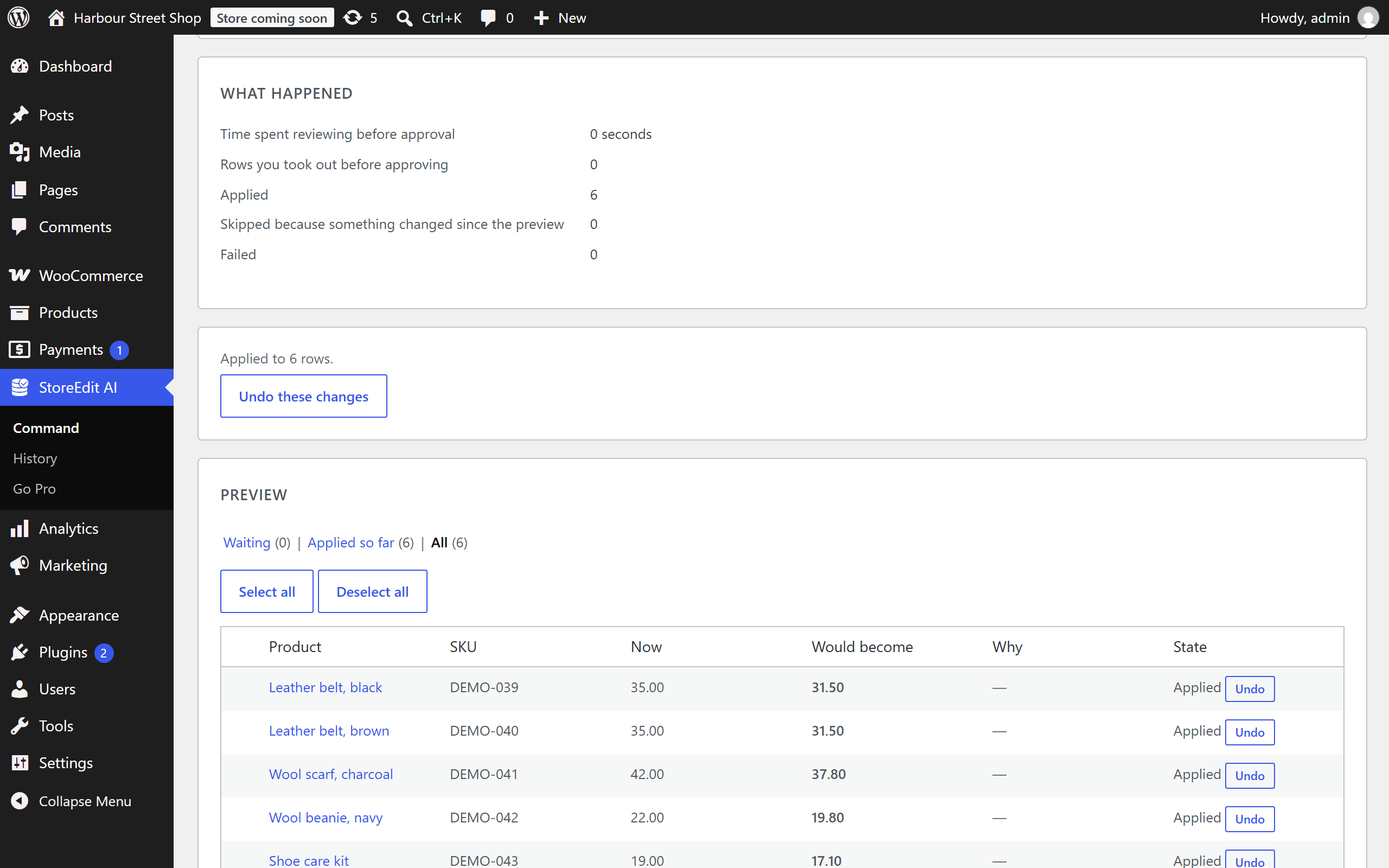
It does not create or delete products, does not touch images and does not run on a schedule. For a long list of new products or a supplier file with many columns, the CSV is still the better tool. See also how to undo a bulk edit.
Questions
Why were some rows skipped?
Either Update existing products was not ticked and the SKU already exists, or the ID matched no product. The import log lists them.
Can I update only the price?
Yes. Keep the ID or SKU column and the price column, and delete the rest from the file.
Can I undo a CSV import?
Not from WooCommerce. Import your original export again.
Does the importer change the product slug?
The list of columns in the product import schema has no slug column.
Do it by asking, and see it first
With StoreEdit AI you describe the change in words instead of editing a spreadsheet. You see the old and new value of every product before anything is written, and the whole request can be undone later.