 StoreEdit AI
How to connect Claude to WooCommerce, step by step
What MCP is, which ways of connecting Claude to a WooCommerce shop exist today, how to add a custom connector, and what to check before it can write.
You connect Claude to a WooCommerce shop by adding the shop’s MCP address to Claude as a custom connector, then signing in. MCP is the standard way an AI assistant connects to another system. The shop side can be WooCommerce’s own developer preview or a plugin, and the choice decides how you sign in and what the assistant is allowed to do.
The routes that exist today
WooCommerce has its own MCP support, described in its developer documentation. The page calls it a developer preview. It sits behind a feature flag called mcp_integration, and the page names no settings screen for it. It can query, create, update and delete products, and query orders, update their status and add notes. Remote connections sign in with a WordPress Application Password, through a small helper package called @automattic/mcp-wordpress-remote. The clients it lists are Claude Desktop, Claude Code, Cursor and VS Code. The WooCommerce blog post on MCP recommends trying it on a staging site first.
Plugins are the second route. Their pages describe different sign-in methods and safeguards. These are the ones we know of, described as their own pages describe them:
| Route | Sign-in | What its page says about safeguards |
|---|---|---|
| WooCommerce built-in MCP | Application Password and a local helper | Developer preview. Use a dedicated user with only the capabilities needed. |
| Counterhand | OAuth 2.1 | Only read-only product, order and report tools are on by default. Optional action log. No undo or general preview described. |
| Easy MCP AI | OAuth, as a custom connector in Claude | Access levels Read-only, Full access or Custom. Audit log. |
| Royal MCP | OAuth | A test by InstaWP found a 72-hour undo token. |
| StoreEdit AI | OAuth, approved by an administrator | Preview, approval in WordPress, undo. |
OAuth means you sign in on a page of your own shop and approve the connection, instead of pasting a password into a configuration file. That is easier for a shop owner who does not want to edit files.
Step by step: add the connector in Claude
These steps come from Anthropic’s page on custom connectors. On Pro or Max:
- Go to Customize > Connectors.
- Click + Add, then Add custom connector.
- Type a name, paste the shop’s MCP address and click Continue.
- Review the sign-in settings it detected and click Continue. Choose Sign in now or Sign in when needed.
- Click Add, then sign in on your shop’s page and approve.
Custom connectors are available on Free (one connector), Pro, Max, Team and Enterprise plans. On Team plans only Owners can add them, and members then click Connect in Customize > Connectors. In a conversation, use the + button and Connectors to switch it on or off. Claude reaches your shop from Anthropic’s cloud, so the shop must be reachable on the public internet.
For ChatGPT, you need developer mode, and which plans can use it and whether it can write both change. Read OpenAI’s current page before you start.
Check these before it can write
- Least privilege. WooCommerce’s documentation advises a dedicated WordPress user with only the capabilities the assistant needs. Do not use your admin login.
- Read first. Ask questions before you ask for changes.
- Staging first. Try the connection on a copy of the shop.
- Look at the storefront. In the InstaWP test, one server reported success on a price write while shoppers still saw the old price. After any write, open the product page and check.
- Preview and undo. Find out whether you can see a change before it is written and take it back afterwards. WooCommerce’s built-in MCP documents neither.
- Anthropic’s own cautions. Connect only servers you trust, read the tool approval requests, and turn off tools you do not need in a conversation.
What to ask first
Start with questions that change nothing. “How many products are in each category?” “Which products have no description?” Then a small write: one category, a few products, and look at the result. When you are ready for prices, read how to raise prices by a percentage.
The StoreEdit AI way
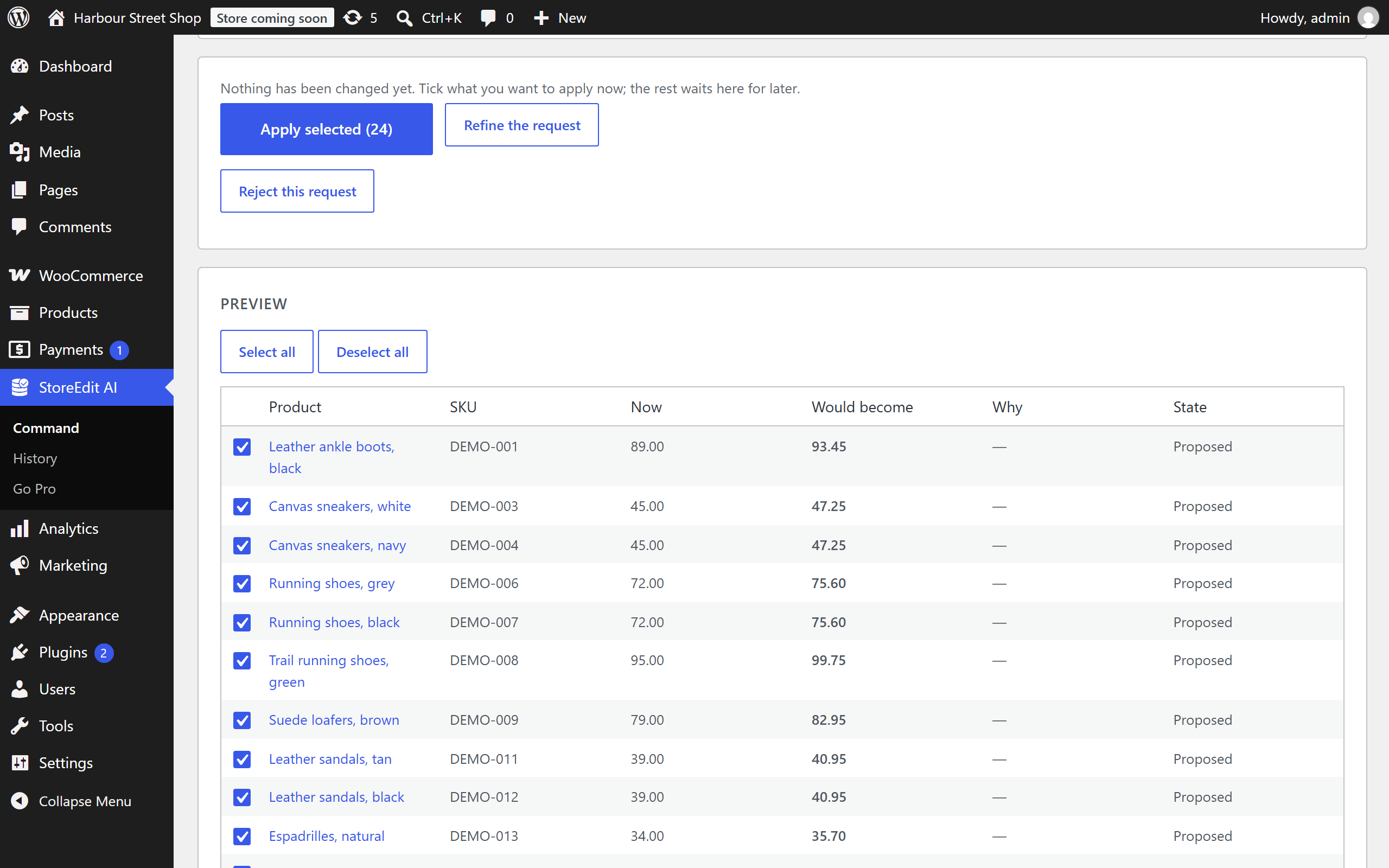
StoreEdit AI is a WordPress plugin. You add the shop’s connection address to Claude or ChatGPT as a custom connector and sign in with OAuth, and an administrator approves the connection in WordPress. The assistant signs in as a limited account called aicm-assistant that can read products and propose changes. It cannot approve, apply or undo anything. You see the request, the summary and every row, then press Apply selected. You pay your own assistant subscription. StoreEdit AI has no AI model inside and asks for no API key.
The limits
WooCommerce’s built-in MCP is a developer preview, uses Application Passwords and a local helper, and documents no bulk operations. Plugins differ, so read each page. StoreEdit AI does not create or delete products, does not touch images, and does not read or change customers, orders, payments or settings. It does not run on its own: no schedules. It needs WordPress 7.0 or later, PHP 8.1 or later, WooCommerce, and a shop online over HTTPS.
Questions
What is MCP?
MCP is the standard way an AI assistant connects to another system. For a shop, it is how Claude gets a list of the things it may do there, such as reading products.
Do I need a developer to connect Claude?
For WooCommerce’s built-in preview, probably yes: it needs a feature flag and a configuration file. For a plugin that signs in with OAuth, adding the connector in Claude is a few clicks.
Can I connect ChatGPT as well?
Yes, with developer mode, but the plan rules and read or write limits have changed. Check OpenAI’s page above.
Is it safe to let an AI edit my prices?
It is as safe as the safeguards around it. Ask for a preview, a limited account and an undo. Our guide to undoing a bulk edit shows what to do if one goes wrong.
Do it by asking, and see it first
StoreEdit AI connects the assistant you already use to your shop through a limited account that can read products and propose changes. You approve every change in WordPress, row by row, and you can undo it afterwards.