 StoreEdit AI
AI Product Descriptions for WooCommerce Without an API Key
Write or rewrite WooCommerce product descriptions with Claude or ChatGPT, read them first, and publish only what you approve. Four ways compared.
Yes, you can write WooCommerce product descriptions with Claude or ChatGPT. Give the assistant real facts about each product, ask for text for WooCommerce’s two description fields, read what comes back and publish only what you accept. The real choice is how the text gets from the assistant into your shop: copy and paste, a CSV file, a plugin that uses an API key, or an assistant connected to the shop. This post compares the four. First, the prompt, because it matters more than the method.
What to put in the prompt
Every WooCommerce product has two text fields. In the product editor, Product description sits below Product name, and Product short description sits after the Product data panel (WooCommerce: product editor settings). Your theme decides where each one appears, so look at a live product page before you write anything.
- A sample of your voice. Paste two or three descriptions you like.
- The facts. Material, size, colour, what is in the box, how to care for it. The assistant knows only what you give it. When a fact is missing, it may guess.
- The job of each field. The short description is a few sentences. The full description holds the detail.
- What to avoid. Claims you cannot prove, competitor names, numbers that are not in your facts.
- The format. Plain paragraphs, or the HTML your theme expects.
Try it on three products before you try it on three hundred.
Way 1: copy and paste
Open the assistant, paste the facts, copy the answer into the product editor. For a handful of products this is fine and costs nothing extra. DevDiggers, a plugin vendor, says it takes about 30 to 60 seconds per product once your prompt works, and that the method becomes tedious past around 50 products (DevDiggers). Those are their figures, but the shape is right: every product costs the same effort.
Way 2: a CSV round trip
WooCommerce can export and import products as a CSV file (WooCommerce: product CSV importer and exporter).
- Go to Products > All Products and click Export.
- Choose the columns you need, for example ID, SKU, Name, Short description and Description, then click Generate CSV.
- Give the file, or pasted rows, to the assistant and ask it to fill in the two description columns.
- Go back to Products > All Products, click Import, choose the file and tick Update existing products.
- Check the Column mapping screen, then click Run the importer.
Rows are matched by ID or SKU. Keep your original export untouched, because it is your only way back. Save as UTF-8 and look at the file after your spreadsheet program has saved it. There is no before-and-after view inside WooCommerce. The CSV checklist covers the traps.
Way 3: a plugin with an API key
Several plugins call an AI service from inside WordPress using a key you create. For example, the listing for Digital Ebene AI for WooCommerce says it needs your own OpenAI API key and writes descriptions of roughly 100 to 150 words, plus alt text and meta descriptions (wordpress.org listing). The upside is that it works inside the admin. The cost is a separate account with the AI provider, a key to keep safe, and the provider’s own pricing for that use. Read each listing to see what is sent and where.
Way 4: the assistant you already use, connected to the shop
StoreEdit AI is a WordPress plugin that connects Claude or ChatGPT to your shop through MCP, the standard way an AI assistant connects to another system. You sign in once with OAuth, then ask in plain words: “Rewrite the short descriptions of everything in the Candles category, in a warm tone, under 40 words, using only the facts in the long description.” The assistant reads the products and writes a different text for each one. Nothing is saved yet. See the documentation for the setup.
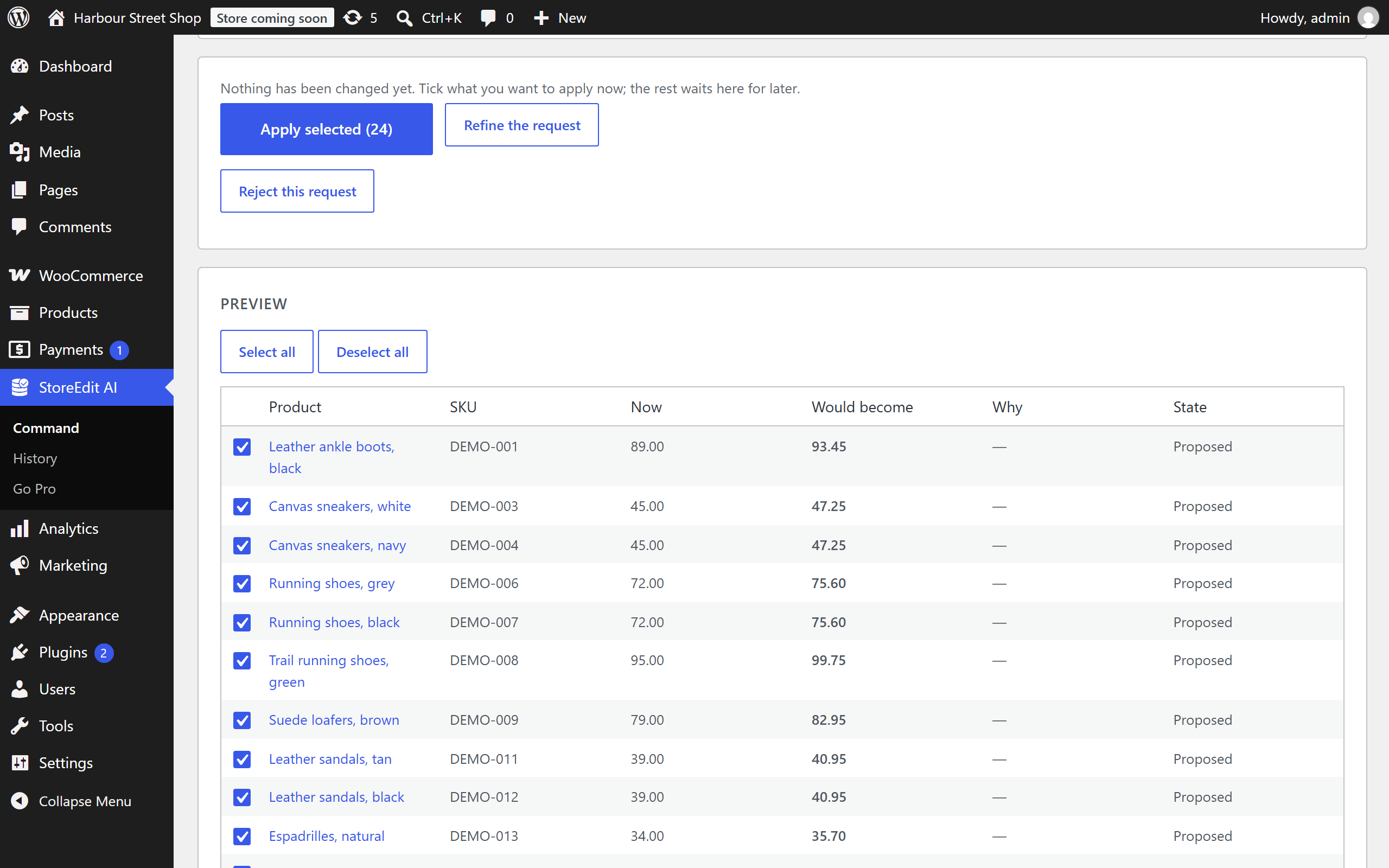
In WordPress admin you then see your request, the assistant’s summary and one row per product: the text now, the text it would become, and a tick box. You untick what you do not like and press Apply selected. A product that changed since the preview is skipped. Undo these changes puts back exactly what was there. One request can cover up to 1,000 products. You pay your own assistant subscription and nothing per use to StoreEdit AI. It needs no API key.
Check the text before it goes live
- Read every row of the first batch. Compare sizes, materials and claims with your supplier sheet.
- Put several results side by side. Products with similar facts get similar text, so look for the same opening line everywhere.
- Health, safety and legal claims are yours to check. The assistant cannot.
- Keep a record of the old text: an export, or the undo in the tool you use.
What each way cannot do
- Copy and paste does not scale.
- A CSV has no preview and no undo of its own.
- An API-key plugin needs a key and an extra bill, and you have to read what it sends.
- StoreEdit AI changes titles, short descriptions and full descriptions of products that already exist. It does not create or delete products and does not touch images. Your shop needs HTTPS, WordPress 7.0 or later and PHP 8.1 or later. What the assistant reads goes to its provider, as in any chat, so check your provider’s terms.
Questions
Can ChatGPT write WooCommerce product descriptions?
Yes. ChatGPT and Claude both write good first drafts when you supply the facts. The method decides how much work the copying is.
Do I need an API key?
Not for copy and paste, a CSV, or StoreEdit AI. Plugins that call the AI service from WordPress usually do.
Will the assistant invent details?
It can. Give it the facts, tell it to use nothing else, and read the result.
How do I stop every description sounding the same?
Give a voice sample, ask for a different opening for each product, and compare several results before you apply anything. Related: meta descriptions and undoing a bulk edit.
Do it by asking, and see it first
StoreEdit AI lets Claude or ChatGPT write product titles, short descriptions and full descriptions, one text per product. You see the old and the new text side by side, untick what you do not want, apply the rest, and undo if you change your mind.